Developing in the web simulator
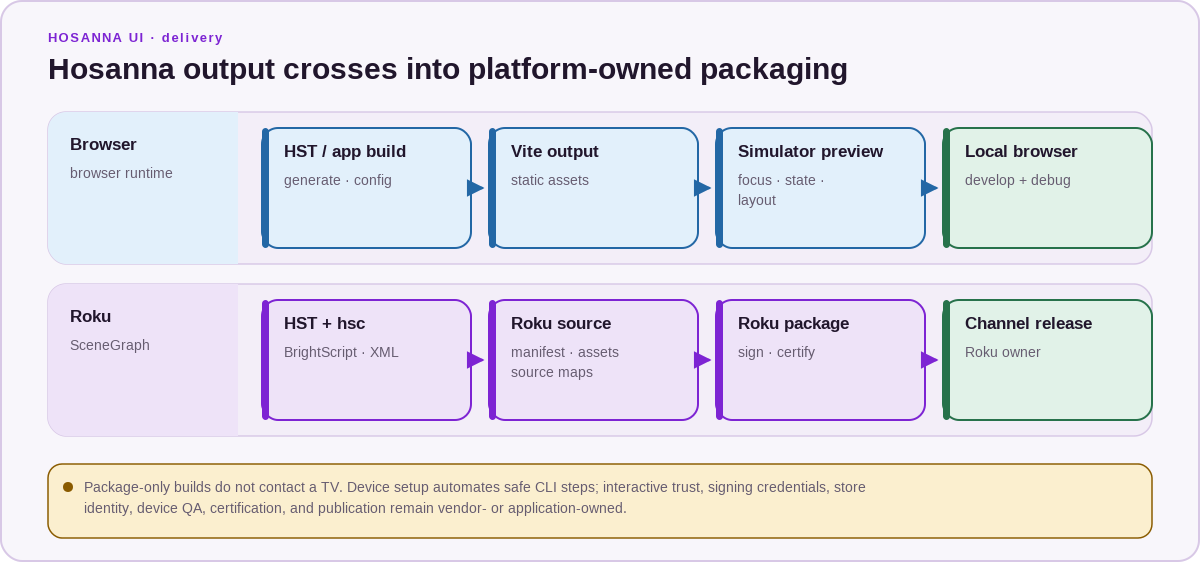
Use the web simulator as the daily development environment for your Roku application. It runs the application's TypeScript with browser implementations of Roku contracts so you can inspect screens, state, layout and focus quickly.
Start the simulator
For a new app or game, complete Getting started first. From the generated app's root, run:
npm run dev
The app and game starters' dev script runs npx hst run browser dev emulator. HST starts or reuses the generator, Vite and debugger services. Open the printed URL, click the app, and use arrow keys for directional input, Enter for OK and Backspace for Back.
Existing applications may use another script name. The direct HST command works when the application supplies its browser host and configuration.
Validate the simulator build
npm run build:browser
The starter's script checks TypeScript and builds the browser assets. Run npm run generate after changes that require regenerated contracts. Existing applications should use their own checked-in browser build script. hst build browser dev emulator resolves the build plan; it does not replace the application's Vite production build.
Use Hosanna DevTools to inspect the view hierarchy, focus and application state. Browser DevTools provides network, console and rendering diagnostics.
The library starter uses build and package-consumer checks. The component-library starter uses generated browser contract tests; it does not execute its BrightScript ZIP in the browser. Follow the selected starter's README.
Continue on Roku
npm run build:roku
npm run run:roku -- --device "<roku name or ip>"
Restore the app dependencies with npm ci, check the compiler with npx hst doctor, and configure the device before these commands. Validate native playback, performance, startup and remote behavior on Roku. See Building for Roku.