Running On Device
Use Hosanna Tools from the terminal for browser, simulator, and physical-device
runs. VS Code launch targets may exist in older projects as compatibility
fallbacks, but the primary workflow is npx hst run plus
npx hst target:list.
General Flow
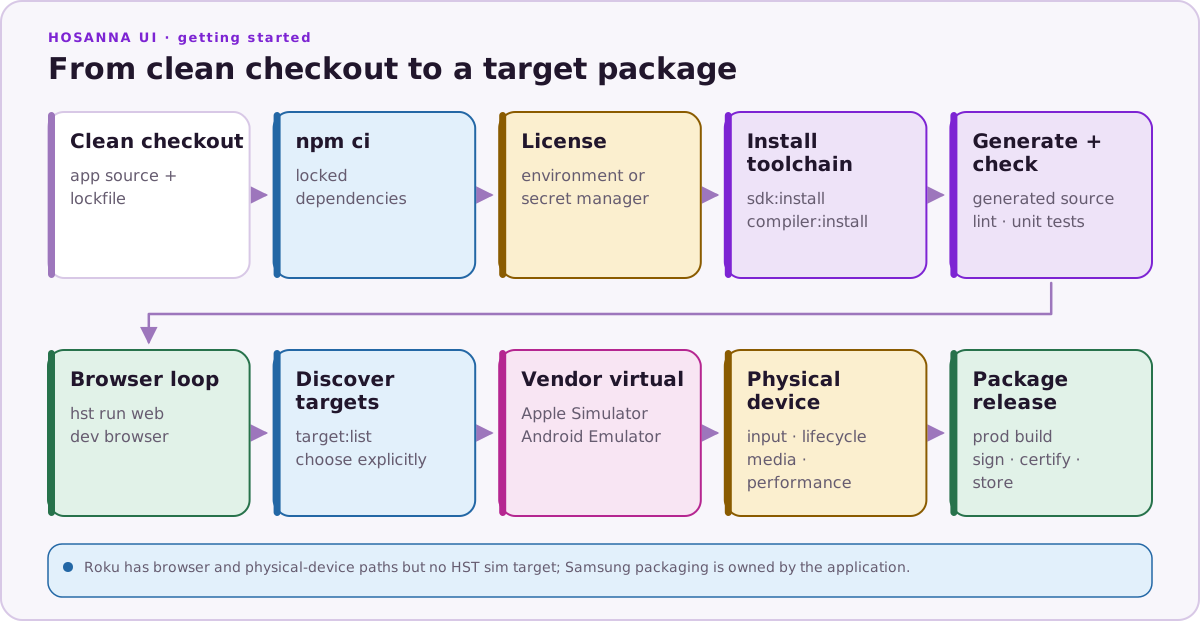
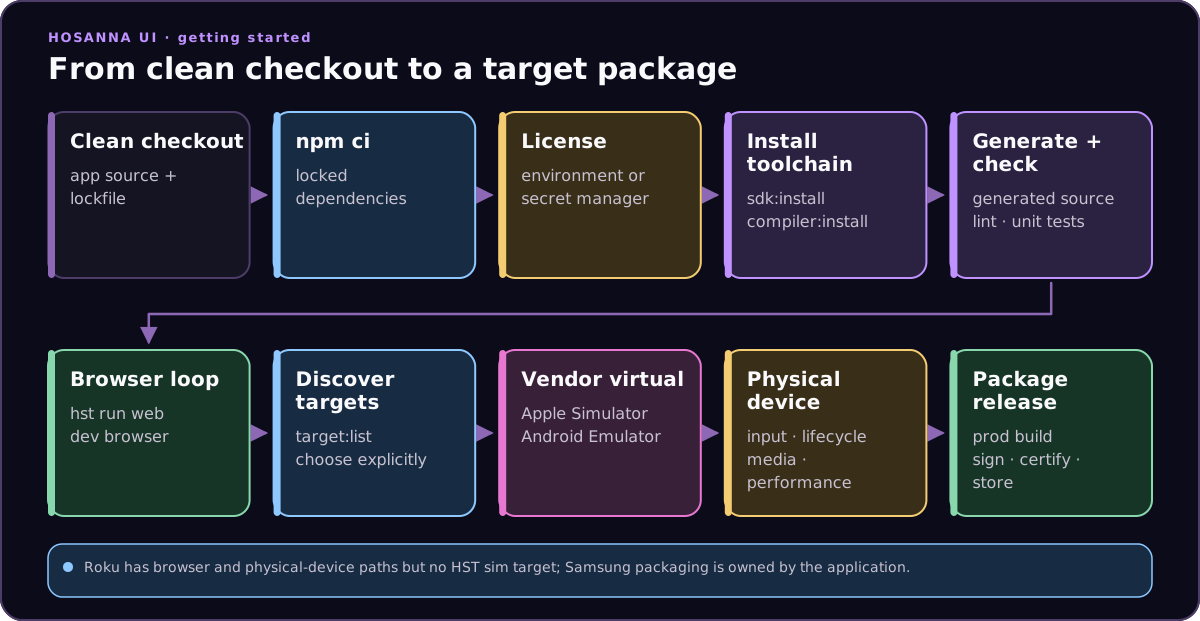
- Develop shared UI, state, AppConfig, fragments, and input behavior in Browser.
- List available targets with
npx hst target:list. - Run the platform target with
npx hst run. - Validate startup, focus or touch input, navigation, networking, media playback, lifecycle resume, logging, and performance.
npx hst target:list --form-factor tv --json
npx hst target:list --platform ios --target browser --json
npx hst target:list --platform ios --target sim --json
npx hst target:list --platform android --target sim --json
Use --dry-run --explain when you need to audit how HST resolved a launch:
npx hst run ios dev browser --device iphone-15 --dry-run --explain
npx hst run android dev sim --device Pixel_8 --dry-run --explain
Platform Paths
- Roku: use
npx hst run roku dev device --device "<roku name or ip>"; add--replacewhen replacing an existing recorded session. - Apple TV and iOS: use
npx hst run apple-tv dev sim,npx hst run apple-tv dev device,npx hst run ios dev sim, ornpx hst run ios dev device. Use Xcode for signing, profiling, and release tooling. - Android TV and Android: use
npx hst run android-tv dev sim,npx hst run android-tv dev device,npx hst run android dev sim, ornpx hst run android dev device. Use Android Studio for signing, profiling, and Play Store release tooling. - CarPlay and Android Auto: use
npx hst run carplay dev simwith an iPhone simulator, ornpx hst run android-auto dev simwith a phone AVD whose Android Auto head-unit server is running. Validate on approved physical head units before release. - Apple Watch and Wear OS: use
npx hst run apple-watch dev simwith a paired Watch/iPhone simulator set, ornpx hst run wear-os dev simwith a Wear AVD. Repeat on physical watches before release. - Samsung TV and LG TV: preview credential-safe setup with
npx hst device:setup <tizen|webos> ... --dry-run, finish the documented vendor-owned trust steps, then run the matchingtizenorwebosdevice target with an explicit alias. Tizen also needs an external signing profile. Usehst buildwhen only a package artifact is required. - Browser previews: use
npx hst run browser dev emulator,npx hst run roku dev emulator, or another platformemulatortarget with Vite, browser DevTools, Hosanna DevTools, and the MCP debugger.
Device selection should be explicit for repeatable runs:
npx hst run browser dev emulator
npx hst run tizen dev emulator
npx hst run webos dev emulator
npx hst device:setup tizen --host 192.168.1.20 \
  --signing-profile samsung-tv-dev --dry-run
npx hst device:setup webos --host 192.168.1.30 \
  --alias living-room --get-key --dry-run
npx hst run tizen dev device --device 192.168.1.20 \
  --signing-profile samsung-tv-dev
npx hst run webos dev device --device living-room
npx hst run roku dev emulator
npx hst run ios dev emulator --device iphone-15
npx hst run roku dev device --device "Living Room Roku" --replace
npx hst run ios dev sim --device "iPhone 17 Pro"
npx hst run ios dev device --device "My iPhone" --no-logs
npx hst run apple-tv dev sim --device "Apple TV 4K"
npx hst run android dev sim --device "Pixel_8"
npx hst run android-tv dev sim --device "Television_1080p"
npx hst run carplay dev sim --device "iPhone 17 Pro"
npx hst run android-auto dev sim --device "Hosanna_Phone_API_35"
npx hst run apple-watch dev sim --device "Apple Watch Series 11 (46mm)"
npx hst run wear-os dev sim --device "Hosanna_Wear_OS_API_36"
Target Types
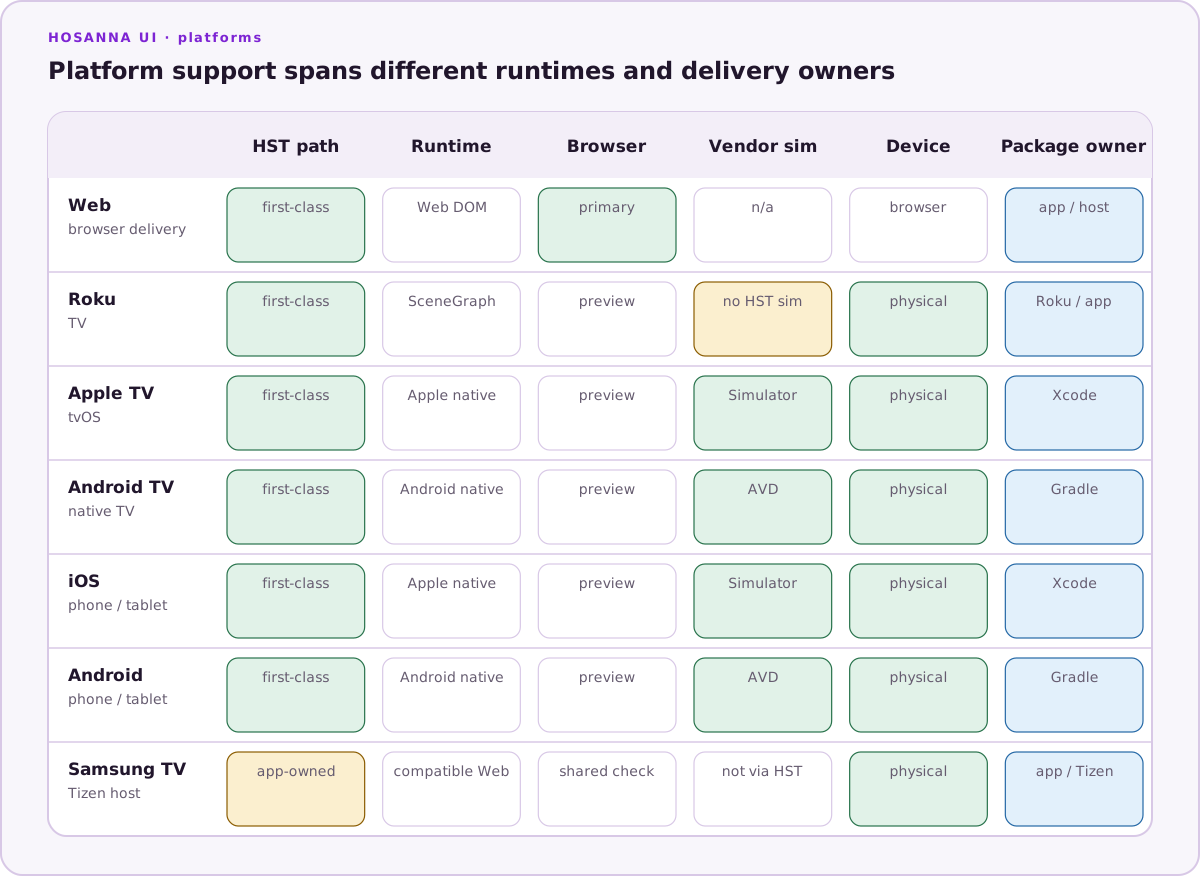
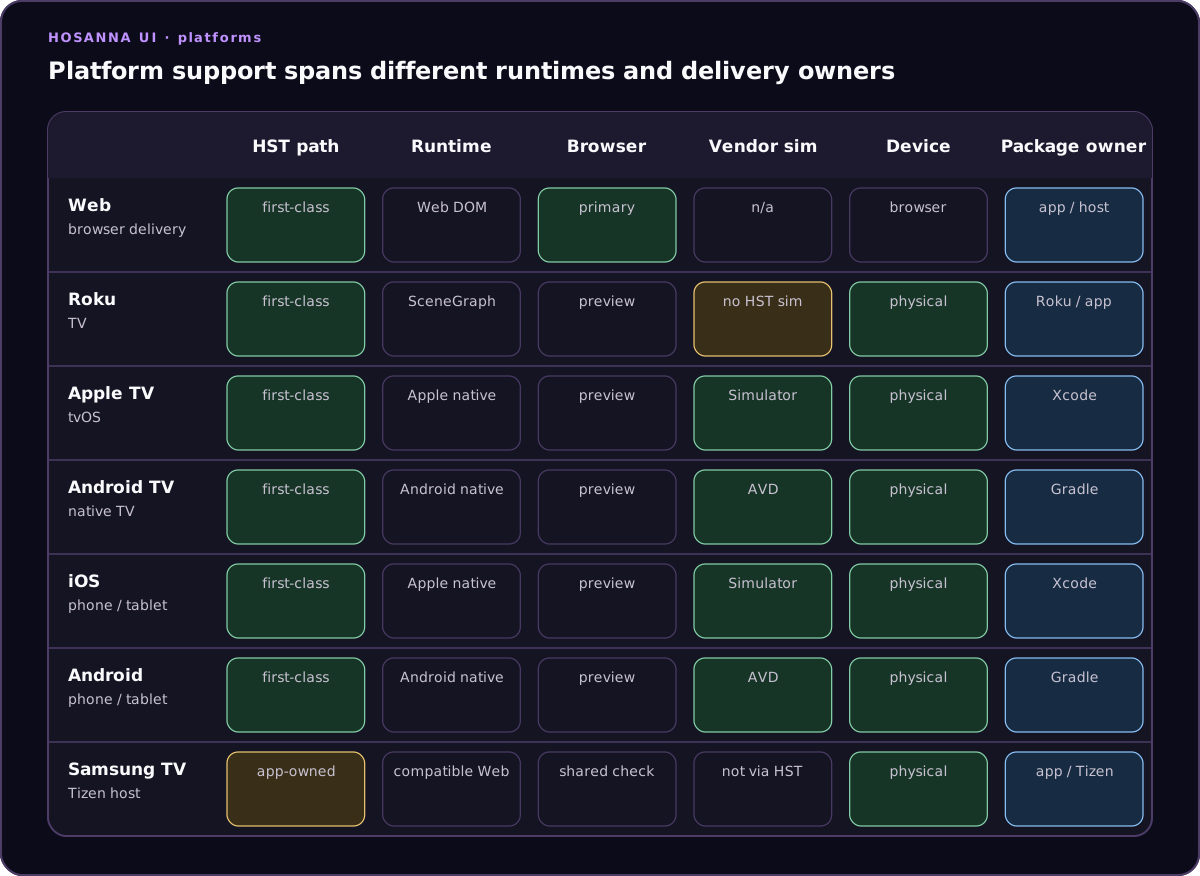
emulator starts the platform-shaped Web runtime. It is the fastest
development loop and can apply presets such as iphone-15, pixel-8,
apple-tv-4k, android-tv-1080p, and rokufhd.
sim is for the vendor virtual-device path: Apple Simulator on iOS, Apple TV,
CarPlay, and Apple Watch; Android Emulator on Android, Android TV, Android Auto,
and Wear OS; plus the Mac-hosted DHU for the selected Android Auto phone AVD.
device is for physical hardware.
Roku supports the browser runtime and physical device runs; HST does not
have a Roku sim target.
Tizen and webOS use the emulator target for desktop preview and do not expose
a separate vendor sim target. The preview compiles the correct vendor
initializer. On physical test sessions, no-argument relaunch is a real
DeviceDriver terminate/launch. Query-bearing rig navigation is a bounded
same-file MCP reload, not a vendor application deep link. HST does not expose a
physical-TV screenshot transport; use explicitly configured external video
capture when evidence is required.
The DevTools device simulator is different from all of these: it is an inspection panel that sends design-coordinate hover/click/key events to a running web or device app.
emulator is the public browser-preview target. Legacy target spellings are
normalized for compatibility. simulator and simulated select sim. These
docs use emulator, sim, and device to keep a vendor virtual device
distinct from a browser emulation preset.
Run Defaults
Commit shared launch defaults in .hosanna-tools/run.json so humans and agents do not have to remember ports, default target kinds, or common sim names:
{
  "schemaVersion": 1,
  "defaults": {
    "appName": "my-hosanna-app",
    "vitePort": 5175,
    "platforms": {
      "browser": { "target": "emulator", "vitePort": 5175 },
      "tizen": { "target": "emulator" },
      "webos": { "target": "emulator" },
      "roku": { "target": "device" },
      "ios": { "target": "sim" },
      "apple-tv": { "target": "sim" },
      "carplay": { "target": "sim" },
      "apple-watch": { "target": "sim" },
      "android": { "target": "sim", "device": "Pixel_8" },
      "android-tv": { "target": "sim", "device": "Television_1080p" },
      "android-auto": { "target": "sim", "device": "Hosanna_Phone_API_35" },
      "wear-os": { "target": "sim", "device": "Hosanna_Wear_OS_API_36" }
    }
  }
}
For repos with multiple apps or flavors, add apps entries and select one with --app:
{
  "schemaVersion": 1,
  "defaults": {
    "appName": "hope-stream-hosanna",
    "platforms": {
      "ios": { "target": "sim" },
      "android": { "target": "sim" }
    }
  },
  "apps": {
    "hope-stream": {
      "appName": "hope-stream-hosanna",
      "platforms": {
        "ios": {
          "profile": "native-device",
          "passthroughArgs": ["--app", "hope-stream"]
        }
      }
    },
    "adventist-plus": {
      "appName": "adventist-plus-hosanna",
      "platforms": {
        "ios": {
          "profile": "adventist-plus-native-device",
          "appConfig": "adventist-plus.phone",
          "passthroughArgs": ["--app", "adventist-plus"]
        }
      }
    }
  }
}
npx hst run ios dev device --app hope-stream --device "My iPhone"
npx hst run ios dev device --app adventist-plus --device "My iPhone"
Run config is layered from home defaults, project defaults, selected app/flavor, platform defaults, environment variables, and CLI flags. Use --app or HOSANNA_RUN_APP to select an entry from apps; use --profile for build-config overlays; use --app-config for runtime AppConfig selection. See White-Label Apps for app/flavor examples.
--device is preferred for one-off runs. HS_TARGET and platform-specific variables such as HS_ANDROID_AVD remain useful for local shell scripts, but committed docs should prefer explicit CLI flags or .hosanna-tools/run.json.
Use Capacitor launch scripts only for explicit maintenance of the legacy WebView shell.
For target-specific details, see Platform Support and the platform page for your release target.