Hosanna Tools
Use the project-local HST CLI to develop in the web simulator and build for Roku.
Prepare a project
Create an app, game, source library or component library with the npm starters described in Getting started. The creator installs dependencies and runs the selected starter's setup script. For an existing checkout, run:
nvm use
npm ci
npx hst sdk:install
npx hst version
npx hst doctor
npx hst compiler:status
Tools 5 integrates the npm framework declared in the application. Migrate an older checkout with the npm installation guide first. Use the Node version and dependency lockfile checked into the project. Tools 5.1.1 and newer resolve the @tantawowa/hsc compiler installed with the app dependencies.
Run npx hst doctor --fix to repair supported installation problems. Compiler repair restores the version selected by the project manifest and lockfile; it does not upgrade to the newest release.
Develop in the simulator
npx hst run browser dev emulator
Application repositories also provide development scripts in package.json. The browser runtime is the Roku development simulator. Use it to iterate on layouts, focus, navigation, and application logic.
Build and run on Roku
npx hst build roku prod device
npx hst run roku dev device --device "living room"
The build command creates the Roku output. The run command also deploys and launches it on the selected development device. Inspect a plan before running it:
npx hst run roku dev device --dry-run --explain
npx hst device:list
Configuration
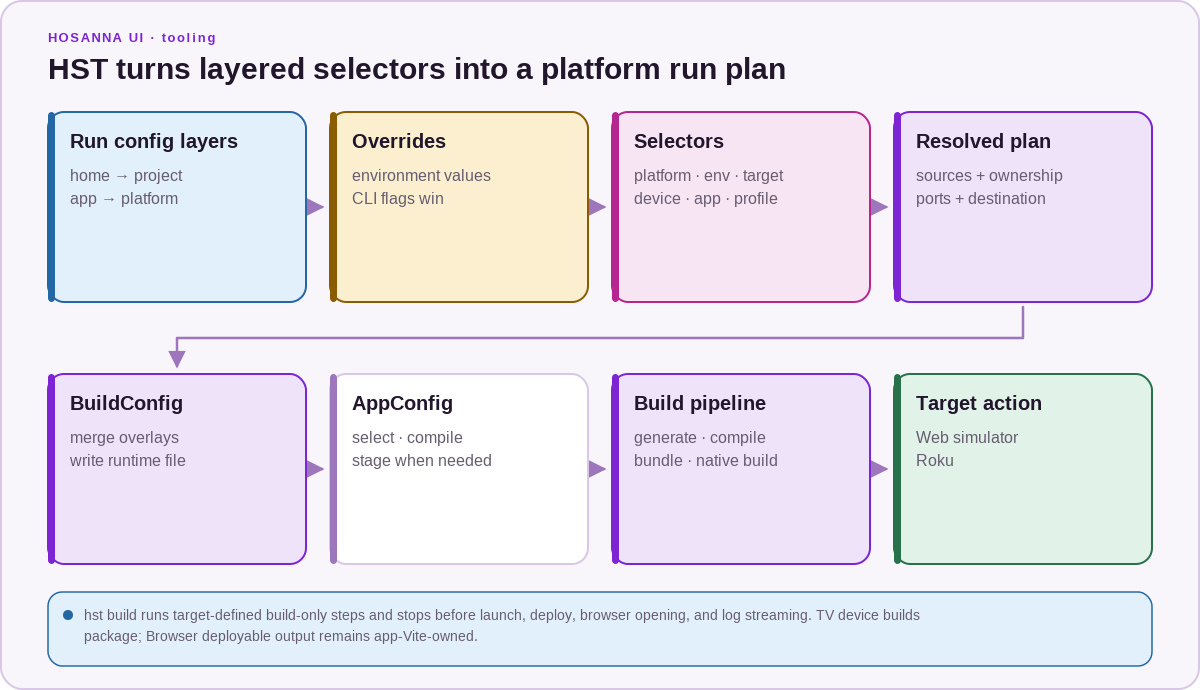
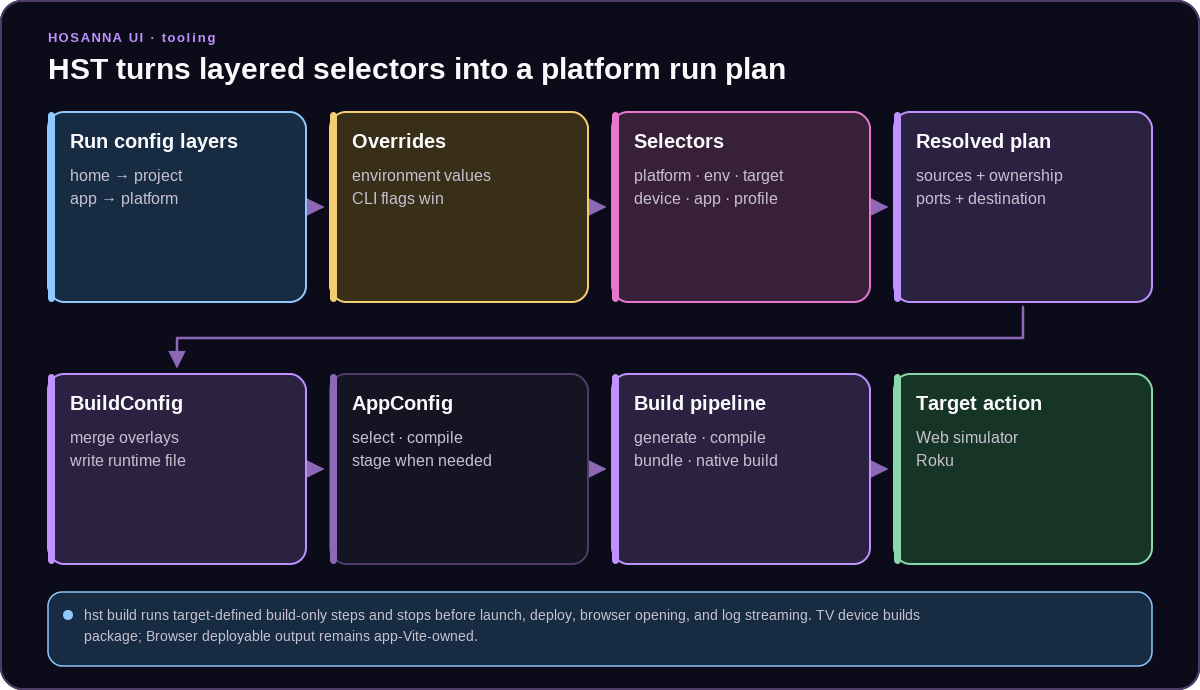
package.json and its lockfile select the framework, tools and compiler. Package version selection does not need hosanna.json; it remains optional for legacy settings and source-link overrides, such as the game starter's hosanna-game link. HST run configuration supplies run defaults and app profiles. BuildConfig controls environment and infrastructure values; AppConfig controls presentation and styles. The compiler reads its build project from hsconfig files.
npx hst config show
npx hst build-config:resolve --env dev --platform web --explain
npx hst build-config:resolve --env prod --platform roku --out assets/meta/build-config.json
Use --app to select an application profile and --profile to select a local build configuration. Inspect the resolved plan when changing either.
Local SDK development
Declare a normal npm local dependency, then let HST repair the app links:
npm install --save-dev /absolute/path/to/hosanna-ui
npx hst sdk:install
Use sdk:migrate --replace-existing once if an old SDK directory or link remains. Restore an exact registry dependency before committing an application release. See Framework installation with npm.
Help and diagnostics
Run npx hst <command> --help for the version installed in your project. Use the debugger to inspect the view tree and application state in the simulator and on Roku. Keep device passwords in ignored local configuration or protected CI settings. Public npm compiler releases do not require license credentials.