Hosanna DevTools Extension
The Hosanna DevTools extension is the interactive debugger UI for Hosanna apps. It connects through the Hosanna command debugger WebSocket proxy and can target either a web app or a Roku/device app.
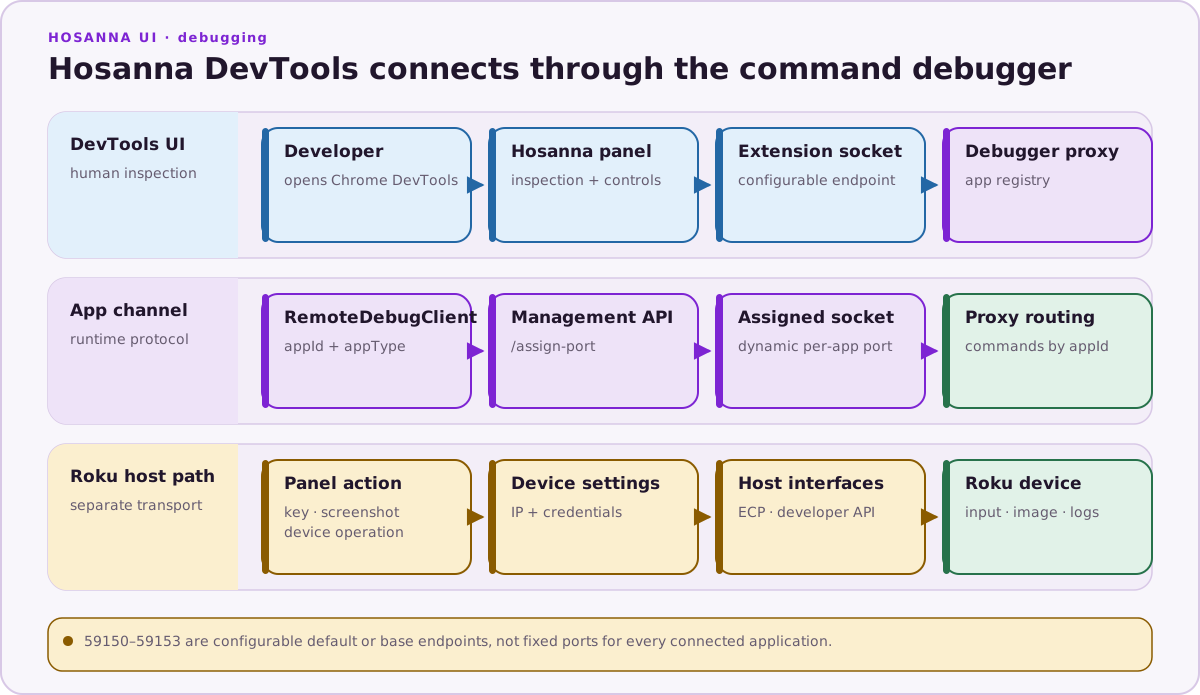
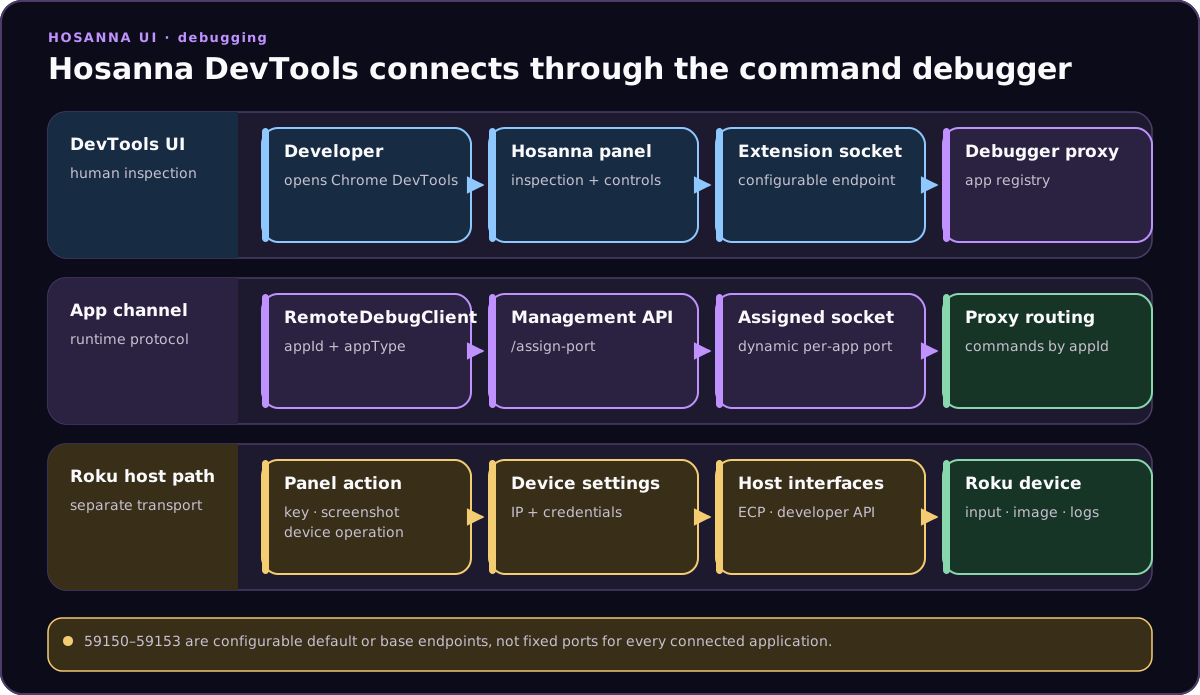
DevTools uses the command debugger for app discovery and protocol routing. Roku ECP, screenshots, and developer logs remain host-side transports.
The extension is available from the Chrome Web Store:
https://chromewebstore.google.com/detail/hosanna-devtools/epghgnobcajmnhkcablhcghiljopploj
For extension development, ../hosanna-ui-browser-extension runs the panel at http://localhost:3000 with:
cd ../hosanna-ui-browser-extension
npm run dev
Required Services
A useful debugging session has three pieces running:
# App repo
npx hst debugger:start
npx hst run browser dev emulator
hst debugger:start opens configurable proxy endpoints used by the extension
and MCP. These values are defaults and bases; a registering app can receive a
different per-app WebSocket port through the management API.
| Default/base port | Endpoint |
|---|---|
59150 | management HTTP API |
59151 | web-app WebSocket base/legacy endpoint |
59152 | device-app WebSocket base/legacy endpoint |
59153 | DevTools extension WebSocket |
Some applications wrap this in package scripts, but hst run is the portable command. If the selected build-config environment does not enable remote debugging, add the project's debug profile with --profile <name>.
Connecting
Open browser DevTools on an http://, https://, or localhost page. The Hosanna tab only appears on real pages, not browser settings or blank tabs.
Use the app selector at the top of the extension to choose the connected app. The selector lists apps discovered by the debug proxy, including web apps, device apps, and debug-app targets.
In Settings, choose the target type and device/app details:
- Web: sends remote keys and inspection commands through the debugger proxy for Browser and connected Tizen/webOS Web DOM apps.
- Device: sends Roku ECP commands to the configured device IP and uses the device app WebSocket for view inspection.
- Debug app: targets a debugger-managed app instance exposed by the proxy.
Tizen and webOS keep appType: web; optional platform metadata distinguishes
them from Browser. The proxy command path does not turn the extension's screen
simulator into vendor hardware or prove native remote timing.
Main Panels
The extension panels map to the remote debug protocol:
| Shortcut | Panel | Primary use |
|---|---|---|
1 | Hosanna Views | Inspect Hosanna view hierarchy, state, errors, and mapped properties |
2 | Scene Graph Views | Inspect rendered SG node hierarchy and update SG fields |
3 | Collection View | Inspect CollectionView rows/cells, focused indices, slices, recordings, and diagnostics |
4 | Fragment | Inspect fragment mappings and data-bound child properties |
5 | IoC Container | Inspect registered services and selected service state |
6 | Instance Pool | Inspect reusable instance pools |
7 | Registry | Read, add, update, remove, import, export, or clear registry data |
8 | Events | Send custom app events |
9 | Text to Speech | Inspect speaking state, queue, completed items, and control playback |
l | Logs | Filter, export, copy, and clear app logs |
0 | Settings | Configure highlighting, logging, editor links, device IP, and target selection |
The top toolbar also exposes scene overflow, mouse inspection, the remote control, and the device simulator.
Keyboard Shortcuts
Open the help screen with ?.
| Key | Action |
|---|---|
r | Toggle remote control |
s | Toggle device simulator |
a | Focus the app selector |
0-9 | Change main tab |
l | Open Logs |
? | Open help |
h | Remote Home |
* | Remote Info |
Home | Remote Rewind |
End | Remote Fast forward |
t | Focus remote text entry |
Esc | Clear remote text |
Enter | Send remote text or Select |
| Arrow keys | Remote navigation |
Backspace | Remote Back |
Shortcuts are ignored while focus is inside an input, textarea, select, contenteditable area, or the remote text entry field.
Settings That Matter
- Highlight elements on hover: highlights views as you move through debugger trees.
- Highlight selected element: keeps a sticky highlight around the selected element on device/app.
- Auto hide generated ids: reduces noise from generated view IDs.
- Auto-scroll to corresponding item on tab switch: keeps HS/SG/CV trees aligned as you move between panels.
- Device IP: Roku device target for ECP commands and screenshots.
- Logging Configuration: set global level and optionally disable individual
trace,debug,info,log,warn, orerrorchannels. - Editor Integration: controls stack trace links for Cursor or VS Code and the source path used to resolve files.