Reports and Failure Investigation
Every completed run with the Hosanna reporter writes a machine-readable report and a local HTML report. A failed assertion also triggers automatic state capture, so investigation starts from the exact target and test run rather than from a generic screenshot.
Artifact layout
With the default artifactDirectory: 'test-results':
test-results/
  current-run.json
  latest.html
  latest.json
  <testRunId>/
    run.json
    report.html
    report.json
    browser-web/
      run.webm                  # browser, when enabled
      run.mp4                   # supported native/device capture
      run.mov                   # macOS window/screen capture
      failures/
        <test-name>/
          commands.jsonl
          debug-context.json
          focus.json
          hierarchy.json
          logs.txt
          screenshot.png
      proofs/
        <test-name>/<proof-name>/
          proof.json
          screenshot.png
The target directory uses <platform>-<target>, for example browser-web,
tizen-device, or roku-device. Files only appear when the target supports
the operation and the test or failure requested it. A physical Tizen/webOS
failure can include semantic state and application/MCP logs, but not a shared
TV screenshot unless application-owned external capture produced separate
video evidence.
Open a report
At run end the reporter prints the full path to <testRunId>/report.html. test-results/latest.html redirects to the most recently completed report. It can be opened directly in a browser; no report server is required.
The HTML report contains totals, duration, each Vitest status/error, named proof images, declared image readiness, and the configured WebM, MP4, or MOV recording when available. report.json contains the equivalent structured data for automation.
In hosanna-ui-samples, open the latest report with:
npm run test:ui:report
Automatic failure diagnostics
The fixture's failure hook attempts to capture:
- the serialized Hosanna view hierarchy;
- current focus;
- debugger context, including navigation state;
- up to 1,000 scoped application and host log entries;
- every client command issued by the test;
- a screenshot when the target supports it.
Secrets declared with envSecret(...) are redacted from serialized commands, logs, and artifacts. After secret text entry the client also suppresses the automatic screenshot for that test, avoiding accidental capture of credential UI.
Browser diagnostics combine application proxy logs with console, page error, and failed-request events. Physical Roku runs can include debugger and Roku debug-log entries.
Named proofs
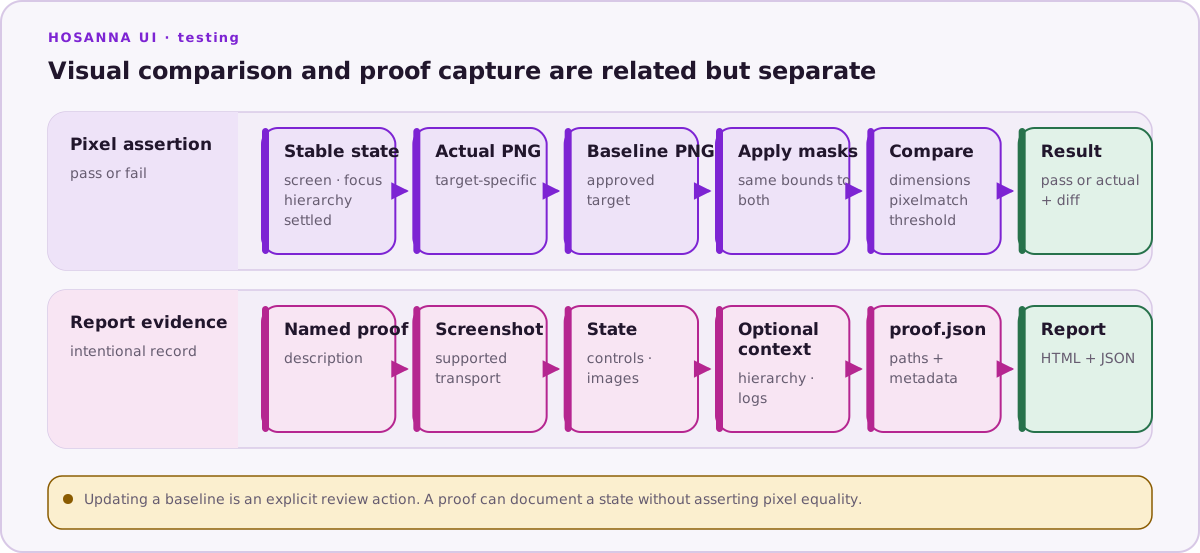
A proof is intentional evidence attached to a passing or failing test:
await hs.proof.capture('second-card-focused', {
  description: 'Focus moved right without changing the selected row',
  controls: {
    collection: hs.control.byId('collectionView'),
  },
  images: {
    poster: hs.image.byTestId('focused-poster'),
  },
  includeHierarchy: true,
  includeLogs: true,
});
Image entries are validated before proof capture. The report records the URI, load status, rendered size, and decoded bitmap size alongside the screenshot.
Investigate a CI failure locally
- Download the complete
test-resultsartifact, preserving directories. - Open
<testRunId>/report.html. - Read the failing test error and its
commands.jsonlin order. - Compare
focus.json,debug-context.json, andhierarchy.jsonwith the test's expected state. - Check
logs.txtfor an earlier application, browser, network, or device error. - Review
screenshot.png, visual actual/diff images, and the run video where available. - Re-run the single file or test name with
HOSANNA_TEST_VERBOSE=1; add headed mode for a browser-only visual inspection.
Do not update a baseline or add a delay until the semantic failure and logs are understood.
Common failure signatures
- Launch timeout: app ID or test-run ID never matched, Vite failed to become ready, or required build config was absent.
- Ambiguous control: more than one serialized control matched an ID/test ID; fix the test contract or scope the application identifier.
- Wait timeout: the message includes last observed value and current diagnostic context. Assert the previous transition before extending timeouts.
- Capability error: the chosen target does not implement touch, text, deep links, screenshots, or another requested operation.
- Missing baseline: create it only through an intentional update run.
- Pixel diff: inspect actual, baseline, and
.diff.png; determine whether content, animation, fonts, dimensions, or rendering environment changed.
See Troubleshooting and Best Practices for prevention patterns.