Apple CarPlay
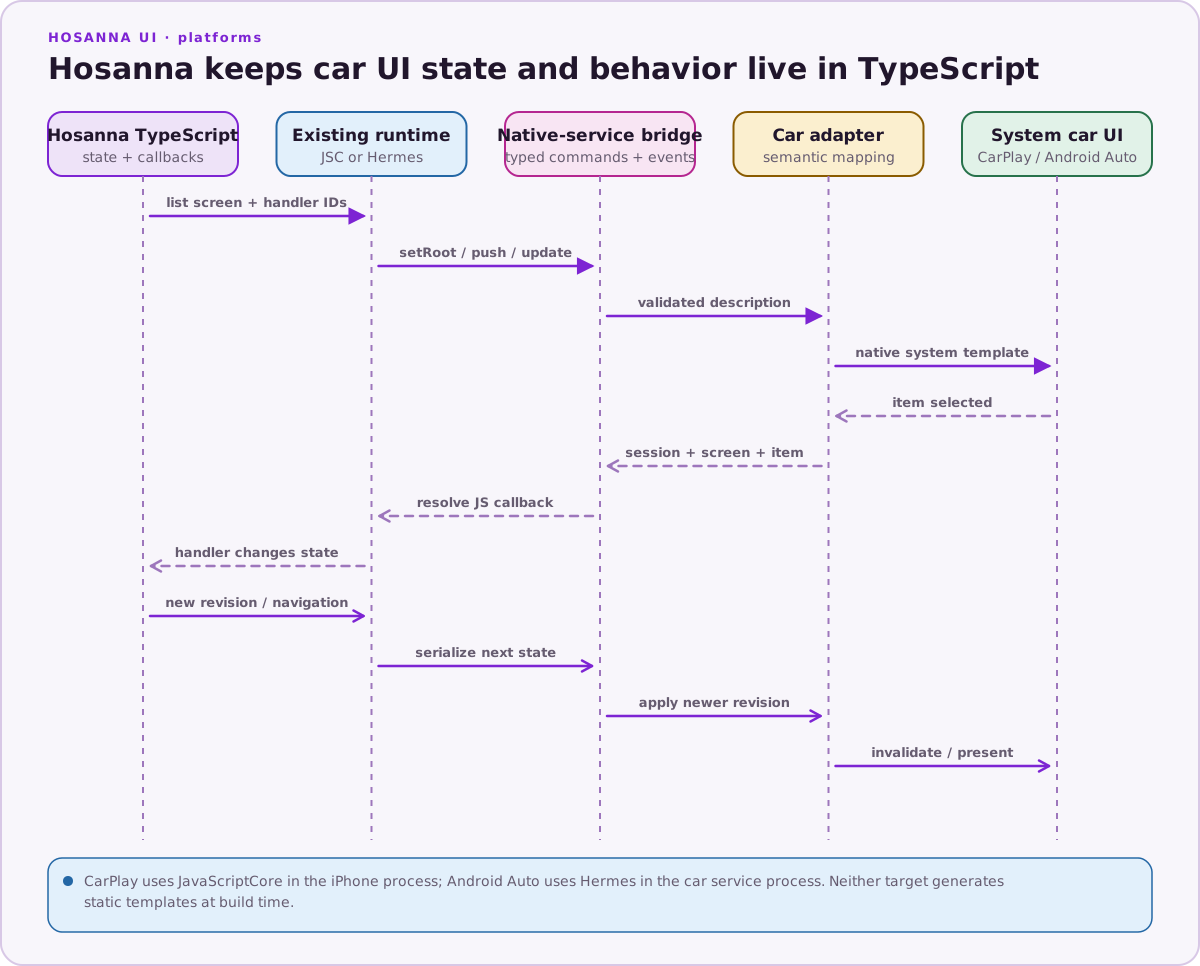
CarPlay is a first-class Hosanna target for system-rendered car experiences. It does not project an arbitrary iPhone view tree into the vehicle. Hosanna TypeScript describes a small semantic car UI, the existing iPhone JavaScriptCore runtime sends it through the native-service bridge, and the Apple adapter renders supported CarPlay templates.
Runtime Model
The iPhone application remains the runtime host:
- Hosanna Tools builds the normal Apple JavaScript bundle and iOS app.
- The iPhone process owns the existing JavaScriptCore context.
- A CarPlay template scene creates a car session independently of the phone window lifecycle.
ICarUIManagersends list descriptions over the existing typed native system-service bridge.- Swift maps them to
CPListTemplate,CPListSection, andCPListItem. - Selection events return with stable session, screen, revision, section, item, and handler identifiers.
- TypeScript changes state and calls
updateScreen,pushScreen, or a pop operation.
This is a live bidirectional runtime. Native templates are not generated at build time, and application/business logic does not move into Swift.
Supported Car UI
The initial shared car contract intentionally stays within driver-safe system templates:
- car session and lifecycle snapshots;
- list screens with stable IDs and monotonically increasing revisions;
- sections and items with title, subtitle, enabled, and browsable state;
- root replacement, push, update, pop, and pop-to-root;
- item callbacks and navigation events.
The native adapter enforces CPListTemplate maximum section and item counts.
A screen title is immutable for a given screen ID; allocate a new ID when its
title must change.
Use platform-native extensions only when a capability cannot be expressed by the common contract. Arbitrary Hosanna views, custom UIKit layouts, and phone screen mirroring are not supported on the CarPlay surface.
Application Entry
An app supplies @hs-platform/AppleCarAppEntry and returns a disposer or a
small runtime object with optional onTick and required dispose methods.
The entry receives the live carUI manager and normal launch arguments.
export function createAppleCarPlayApp({carUI, launchArgs}) {
  const app = new MyCarApplication(carUI, launchArgs);
  app.start();
  return app;
}
Keep handlers in TypeScript. A list item can update its existing screen by incrementing the revision, or push a new list screen:
carUI.pushScreen(sessionId, {
  type: 'list',
  id: 'episode-detail',
  revision: 1,
  title: 'Episode',
  sections: [{
    id: 'actions',
    items: [{
      id: 'favourite',
      title: 'Add to favourites',
      onSelect: () => updateFavouriteInTypeScript(),
    }],
  }],
});
Create and Configure
Hosanna Tools generates the CarPlay scene declaration and adds the framework adapter to the app-owned Apple project. Keep the CarPlay app entry and product configuration in the application repository; keep reusable protocol and native adapter code in Hosanna UI.
Run native:init once when adding the target. Subsequent native:prepare
calls validate the app-owned project without recreating it.
npx hst native:init carplay
npx hst native:prepare carplay --non-interactive --format json
npx hst native:doctor carplay
npx hst target:list --platform carplay --target sim --json
The CarPlay target shares the iOS bundle and signing identity. A production app must also use an Apple-approved CarPlay category entitlement and provisioning profile. Simulator support does not grant production entitlement approval.
Build and Run
Use an iPhone simulator as the host target. The launcher builds and installs
the iPhone app, launches its JavaScriptCore runtime, and requests the CarPlay
external display. That request is not proof that a CarPlay scene connected:
the run result reports surfaceSession.verified: false until session
verification is implemented, so confirm the template and lifecycle event in
the external display and logs.
npx hst build carplay dev sim --device "iPhone 17 Pro"
npx hst run carplay dev sim --device "iPhone 17 Pro"
Opening the CarPlay external display uses macOS UI automation and may require Accessibility permission for the launching terminal. If automation is denied, or the Mac login session is locked, open Simulator → I/O → External Displays → CarPlay manually after unlocking the Mac.
For a physical iPhone, use device and select its name or UDID. Validate the
final application in a compatible vehicle or approved head unit; the Simulator
cannot prove hardware, audio-session, or vehicle-integration behavior.
Lifecycle and Updates
A CarPlay scene can connect while the phone window is absent or inactive. Do not tie JavaScriptCore lifetime exclusively to a phone view controller. Subscribe to car lifecycle events, install a root for each session ID, and dispose event subscriptions and handler registrations when the surface ends.
Every dynamic change to an existing screen must increment its revision.
Ignore stale asynchronous responses after a newer request or destroyed session
has taken ownership.
Validation Checklist
- Build and launch through
hst run carplay, not only Xcode compilation. - Confirm a root template appears in the CarPlay display.
- Select an item and verify the TypeScript handler runs.
- Verify a JS state change updates or navigates the native template.
- Disconnect/reconnect the scene and verify session cleanup and restoration.
- Run shared Apple, iOS, and Apple TV regression suites.
- Confirm signing, category entitlement, privacy declarations, App Store metadata, and physical-vehicle behavior before production.
Apple's platform requirements remain authoritative; see CarPlay app programming guidance and the App Review Guidelines.